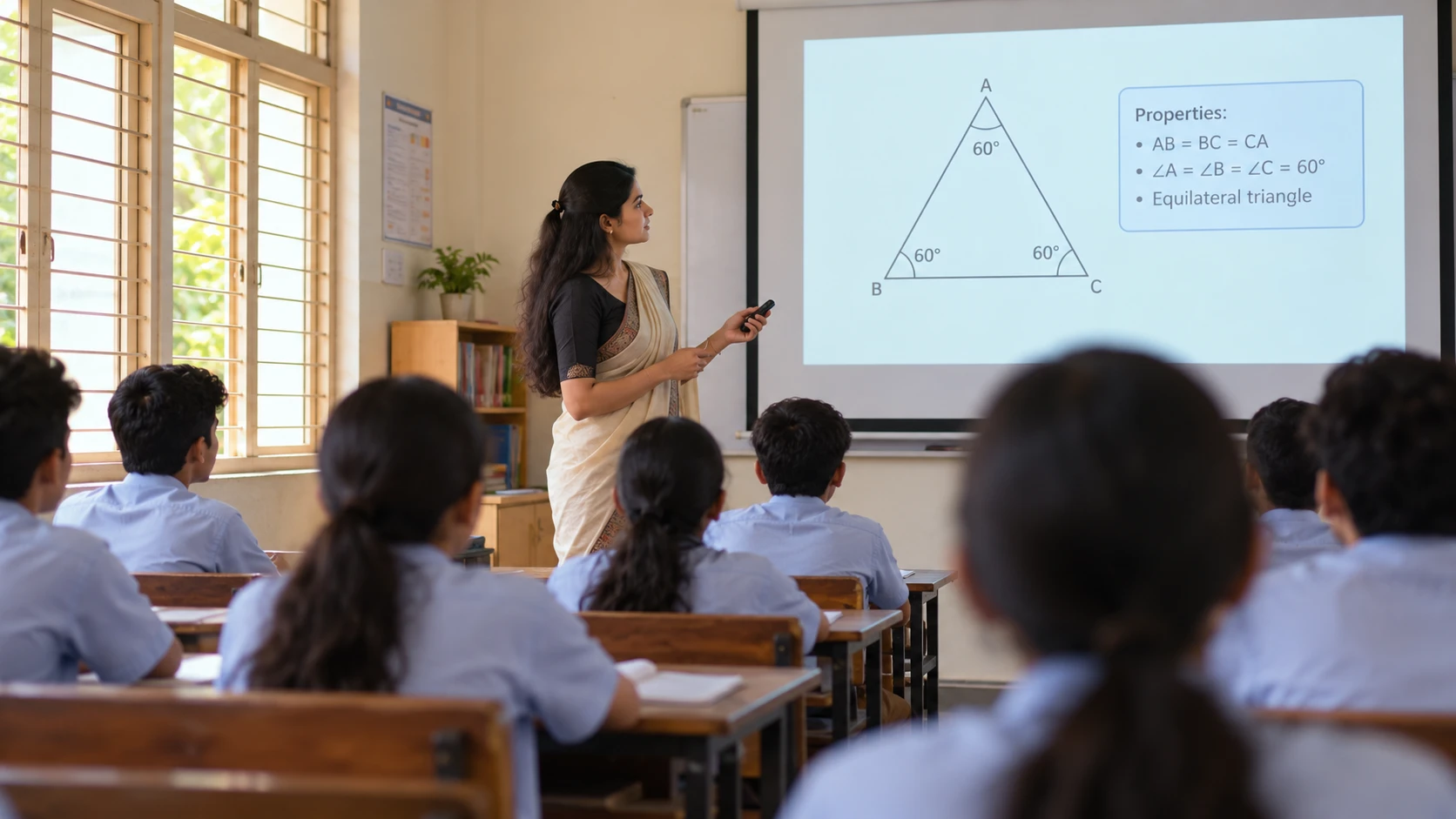
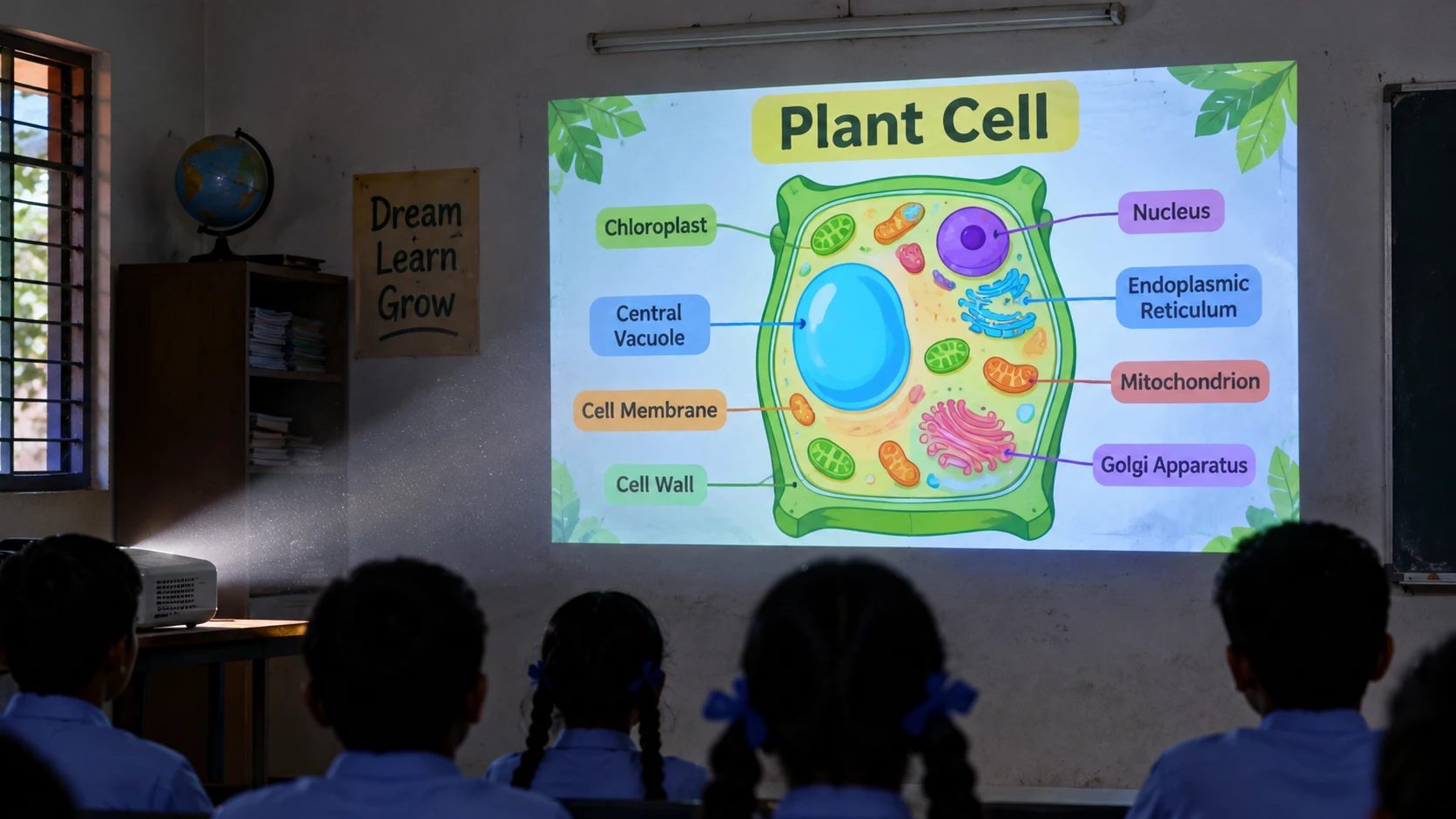
Abstract ideas are hard to describe and easy to show. The chapters are animations, so the whole class sees the idea at once.
Animated figures, graphs and diagrams
Pause, replay and point at any frame
Large text that reads from the back row
02
Teach step by step
Chat lessons put a teacher chat on one side and an animated board on the other. Each step asks first and answers in the next, so students think before they see.
One clear idea per step
Ask, pause, then reveal
Examples, exercises and proofs on notebook pages
03
Explore together
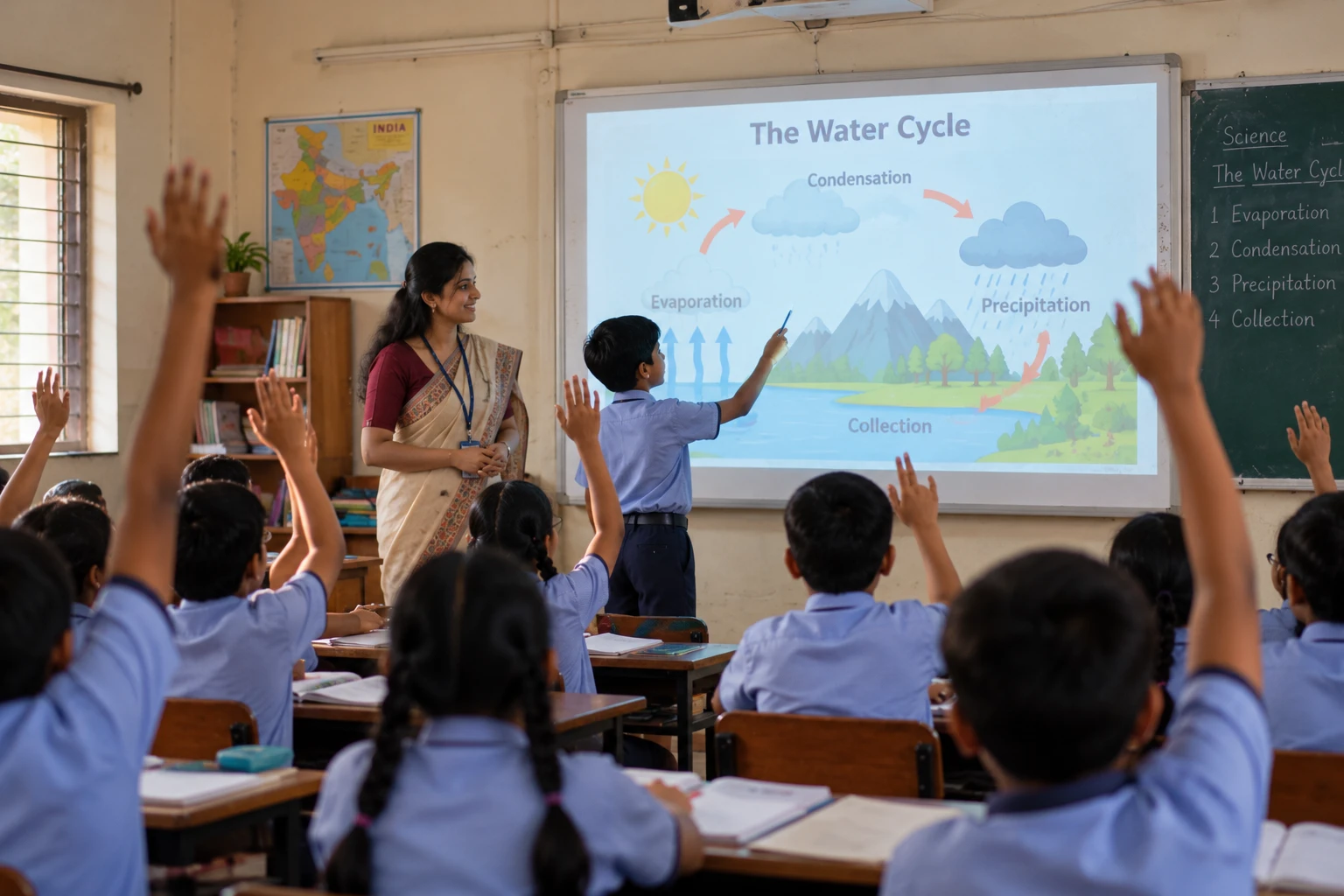
Bring students to the board. Quizzes, matching, word games, labelling and mind maps turn a lecture into a class activity.
Quiz, true or false, match the following
Diagram labelling and mind maps
Speaking and reading for languages
04
Automated worksheets
Create practice that matches the chapter you just taught, so revision and homework follow the lesson.
Practice from the same chapter
Saves hours of typing questions
Questions that match what was taught
02 — Built for the projector
Designed around real classrooms.
01
Works offline
Content downloads to the device after login. Patchy internet will not stop a class.
02
TV-remote friendly
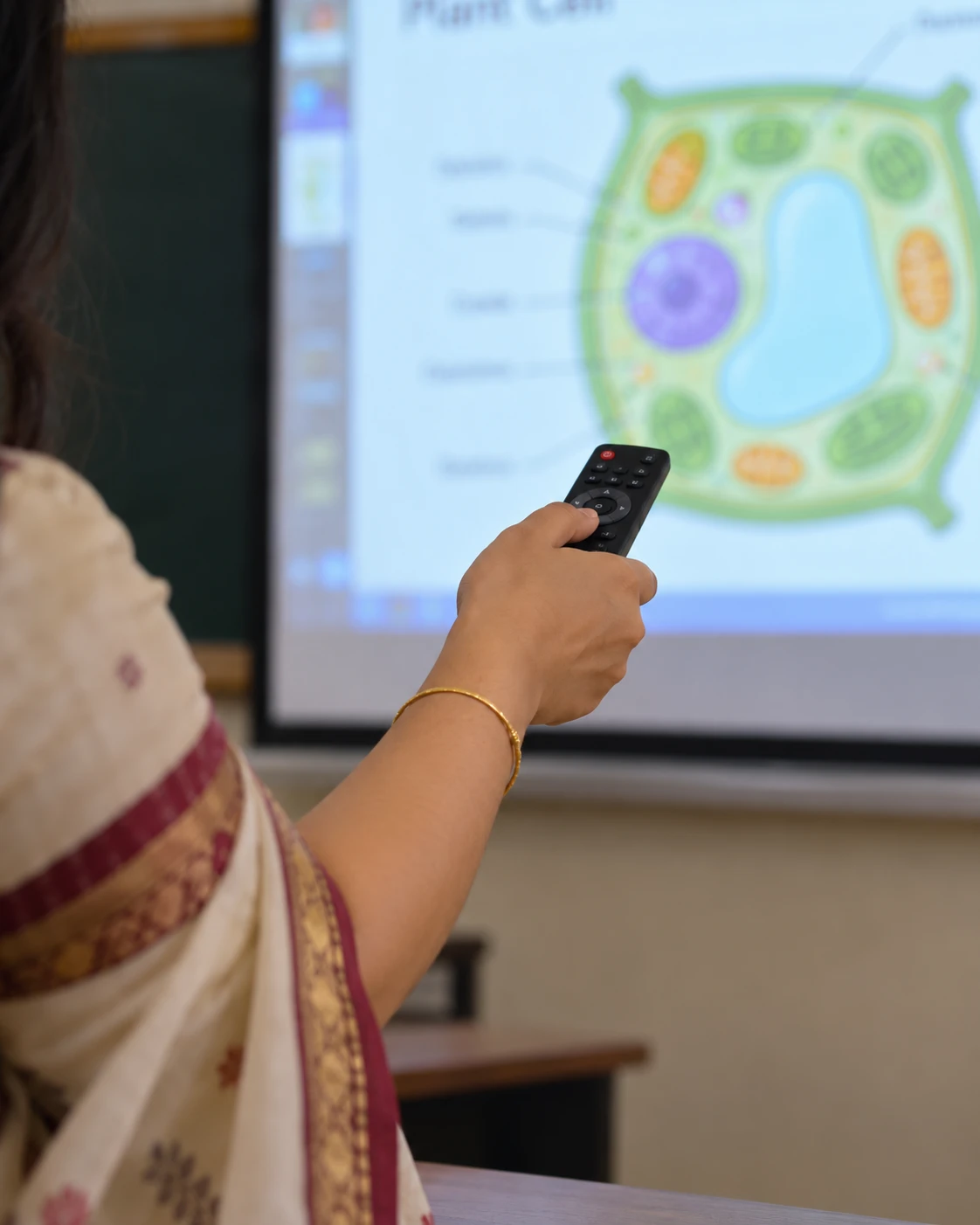
Everything works with a D-pad remote as well as touch.
03
Light on projectors
Tuned for Android projectors with about 1 GB RAM, plus Windows PCs and web.
04
Rest reminder
After about 2 hours of continuous use the app reminds you to rest the projector.
03 — Activity types
16 ways to keep the class involved.
01
Concept chat lessons
A teacher chat on one side and an animated board on the other. Ask first, then answer in the next step.
02
Exam notebook pages
Textbook examples, exercises and proofs written step by step on ruled paper.
03
Math & Science Discovery
Interactive discovery activities and lab-style simulations for the projector.
04
Interactive video
A video that pauses for a question or a notes card, then continues.
05
Slideshow & Visual learning
Picture-led explanations the whole class can follow from the back row.
06
Quiz & True or False
Quick checks to see if the class understood.
07
Match the following
Drag-and-match activities for vocabulary and concepts.
08
Fill in the blank
Complete the sentence or the working with word chips.
09
Word activities
Word search, word sorting, word selection and dictation.
10
Diagram labelling
Label the parts of a figure straight on the board.
11
Mind map
Build connected ideas for a topic as a class.
12
Speaking & reading
Speak, listen and read aloud with feedback.
13
Image activities
Image guessing, image + sentence and image word pick.
14
Table sorting
Sort items into categories in a table.
15
Grammar Talk & writing
Grammar practice, creative and voice writing.
16
Chapter lab
A full chapter laid out as a guided lab.
04 — Exam mode
From the animation to the exam page.
After the concept, the same chapter's textbook example is written out line by line, the way students will write it in the exam.